Top companies trust Zapier to automate work that solves their unique business problems—no coding required.
How Zapier works
Zapier makes it easy to integrate Gmail with OneDrive - no code necessary. See how you can get setup in minutes.
100%
Help
Gmail
Gmail
1. Choose trigger event
OneDrive
OneDrive
2. Choose action
1. Select the event
Setup
Test
Gmail
Choose a trigger event
Choose a trigger
A trigger is the event that starts your Zap—like a "New Attachment" from Gmail.
Add your action
An action happens after the trigger—such as "Copy File or Folder" in OneDrive.
You’re connected!
Zapier seamlessly connects Gmail and OneDrive, automating your workflow.
Supported triggers and actions
Zapier helps you create workflows that connect your apps to automate repetitive tasks. A trigger is an event that starts a workflow, and an action is an event a Zap performs.
Create a new record or update an existing record in your app.
SharedNote
Folder
File
Required
File Name
Action
This is an event a Zap performs.
Write
Create a new record or update an existing record in your app.
Copy
File or Folder
Destination Folder
New Name
Action
This is an event a Zap performs.
Write
Create a new record or update an existing record in your app.
Copy
Browse to Folder
File to Replace
Required
File
Required
New Name
Action
This is an event a Zap performs.
Write
Create a new record or update an existing record in your app.
File or Folder
Link Type
Required
Link Scope
Expiration Date
Retain Inherited Permissions
Action
This is an event a Zap performs.
Write
Create a new record or update an existing record in your app.
Stop on error
Required
HTTP Method
Required
URL
Required
Query string parameters
Additional request headers
Body
Action
This is an event a Zap performs.
Write
Create a new record or update an existing record in your app.
Copy
Search Query
Required
Action
This is an event a Zap performs.
Search
Find existing data in your app
KQL Query
Required
Action
This is an event a Zap performs.
Search
Find existing data in your app
File or Folder
Required
Action
This is an event a Zap performs.
Search
Find existing data in your app
For AI agents & developers
Use Gmail and OneDrive with AI agents and code
Beyond Zap workflows. Call Gmail and OneDrive actions directly from your AI client or your codebase, using the same 9,000+ app integrations Zapier already runs.
No code
Connect via Zapier MCP
Expose Gmail and OneDrive actions as tools in any MCP client. Authenticate once, then call them in natural language.
Example actions on this page
Add Label to Email
Copy File or Folder
Works with
Claude · ChatGPT · Cursor · any MCP-compatible client
There is no Python package yet. SDK is TypeScript-only (@zapier/zapier-sdk). The MCP server URL is personal to your account; get it at zapier.com/mcp.
Zapier is the automation platform of choice for 87% of Forbes Cloud 100 companies in 2023
93%
Customers who say using Zapier has made them better at their job
25m
Customers have created over 25 million Zaps on the platform
6 mins
The average user takes less than 6 minutes to set up a Zap
Practical ways you can use Gmail and OneDrive
Save email attachments in OneDrive.
When a new email arrives in your Gmail inbox with an attachment, Zapier can automatically save the attachment to a designated OneDrive folder. This streamlines document organization, reduces manual effort, and ensures important files are securely stored for easy access.
When an email with an attachment comes into a monitored Gmail inbox, Zapier can upload the file to OneDrive. This helps IT ensure critical documents like logs or system reports are archived systematically, enhancing compliance and disaster recovery practices.
When a new folder is created in OneDrive, Zapier can automatically label a related email thread in Gmail. This keeps communication and documents about a project aligned, helping teams stay organized and reducing time spent tracking down information.
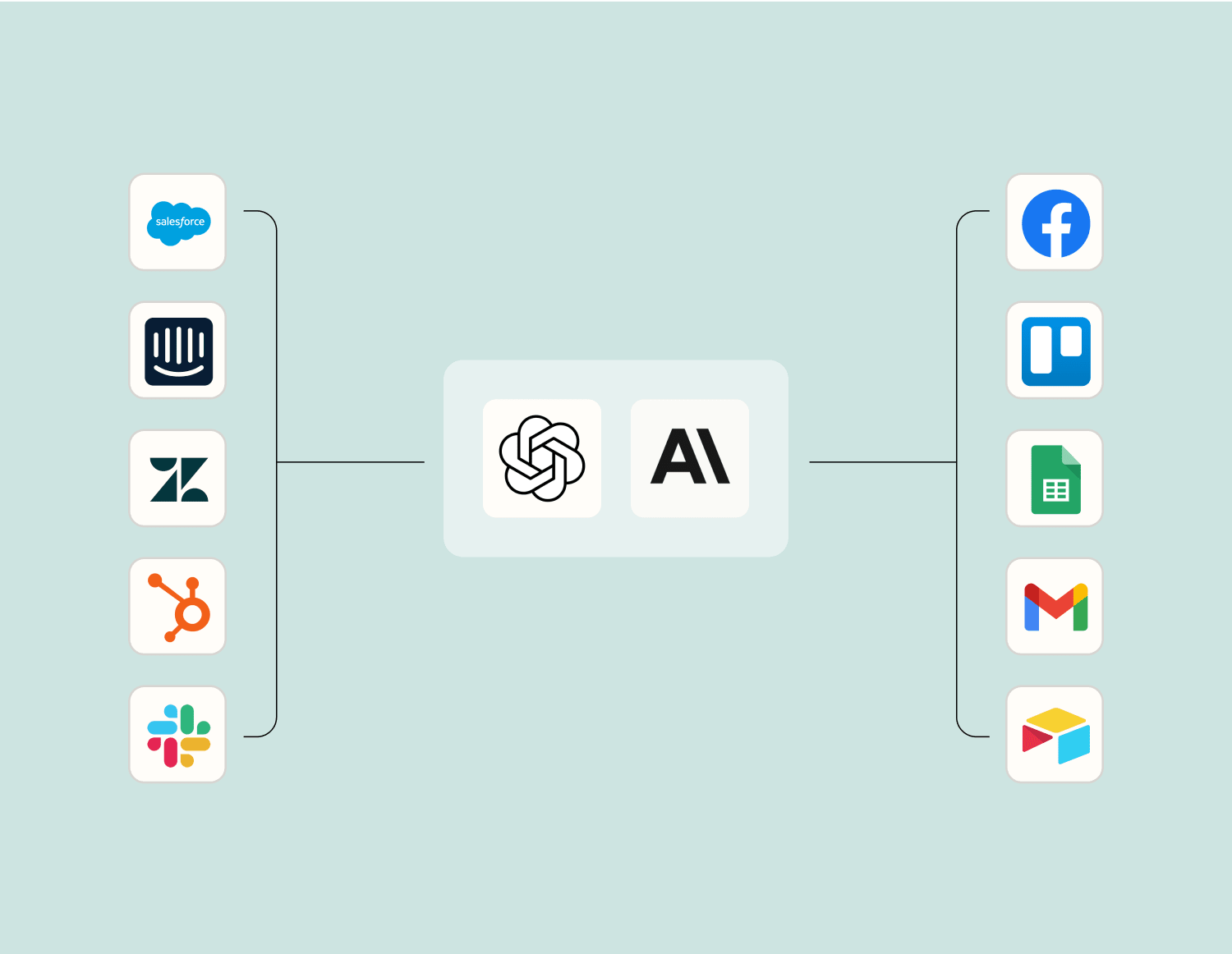
Level up your Gmail to OneDrive integration with AI. Extract, summarize, and transform your integration data with leading AI models like OpenAI, Anthropic, and more.
Frequently Asked Questions about Gmail + OneDrive integrations
New to automation with Zapier? You're not alone. Here are some answers to common questions about how Zapier works with Gmail and OneDrive
How do I integrate Gmail with OneDrive?
To integrate Gmail with OneDrive, you can use our platform to set up triggers and actions. Start by creating a new Zap where Gmail is set as the trigger app, and OneDrive is set as the action app. Follow the steps in our interface to connect your accounts and specify the actions you would like us to automate.
Can I automatically save email attachments from Gmail to OneDrive?
Yes, you can automatically save email attachments from Gmail to OneDrive. By setting up a trigger for new emails in Gmail with attachments, we facilitate an action that will upload these files directly into a specified OneDrive folder.
What types of files can be uploaded from Gmail to OneDrive?
Our integration supports uploading all file types that are allowed by both Gmail and OneDrive. This means most common file formats like PDFs, images, documents, and spreadsheets can be transferred seamlessly between the two services when an email is received.
Is it possible to organize files in specific folders on OneDrive when saving from Gmail?
Indeed, you can organize files into specific folders on OneDrive by specifying the folder path during setup. When configuring your Zap's action step for saving attachments from Gmail, simply choose or create a preferred folder in your connected OneDrive account.
How often are integrations between Gmail and OneDrive updated or synced?
Integrations between Gmail and OneDrive run nearly in real-time. Each time your specified trigger event happens in Gmail (like receiving an email), we initiate the corresponding action configured with your connected apps almost immediately after.
Are there any limitations on the size of attachments that can be transferred from Gmail to OneDrive?
File size limitations rely primarily on what both services support. For instance, Google has a maximum attachment limit of 25MB per email, while file uploads to OneDrive are constrained by its own storage limitations. Our integration respects these boundaries during transfers.
Can I set conditions for which emails should have their attachments saved to OneDrive?
Certainly! You can set conditions using filters during the Zap setup process. For example, you might specify that only emails containing certain keywords or emails from specific senders should have their attachments saved to your connected OneDrive account.
About Gmail
One of the most popular email services, Gmail keeps track of all your emails with threaded conversations, tags, and Google-powered search to find any message you need.
OneDrive, Microsoft's file sync app formerly known as SkyDrive, lets you store your files online, edit Office documents in the free Office Web Apps, and easily access your online files from your PC.