
If you've ever clicked through all the menus in Google Docs in search of a seemingly basic function only to come up short, you're not alone. Despite being a product of one of the most innovative tech companies out there, Google Docs can feel a little thin when it comes to its built-in features.
But that's nothing a few—or a couple hundred—Google Docs add-ons can't solve.
The Google Workspace Marketplace offers hundreds of them for just about everything—from writing and editing to checking for plagiarized content to faxing (yes, faxing) your documents. The Zapier team has tested nearly 100 add-ons—here are the six best add-ons to extend the functionality of Google Docs.
Table of contents:
How to use Google Docs add-ons
Here's how to find Google Docs add-ons from your desktop. (The steps are similar if you're using the Android mobile app—you can't use them from your iPhone or iPad.)
Open a new or existing document in your browser.
Click Extensions > Add-ons > Get add-ons.
The Google Marketplace pop-up window will appear, and you can explore add-ons for every Google Workspace app, including Google Docs.
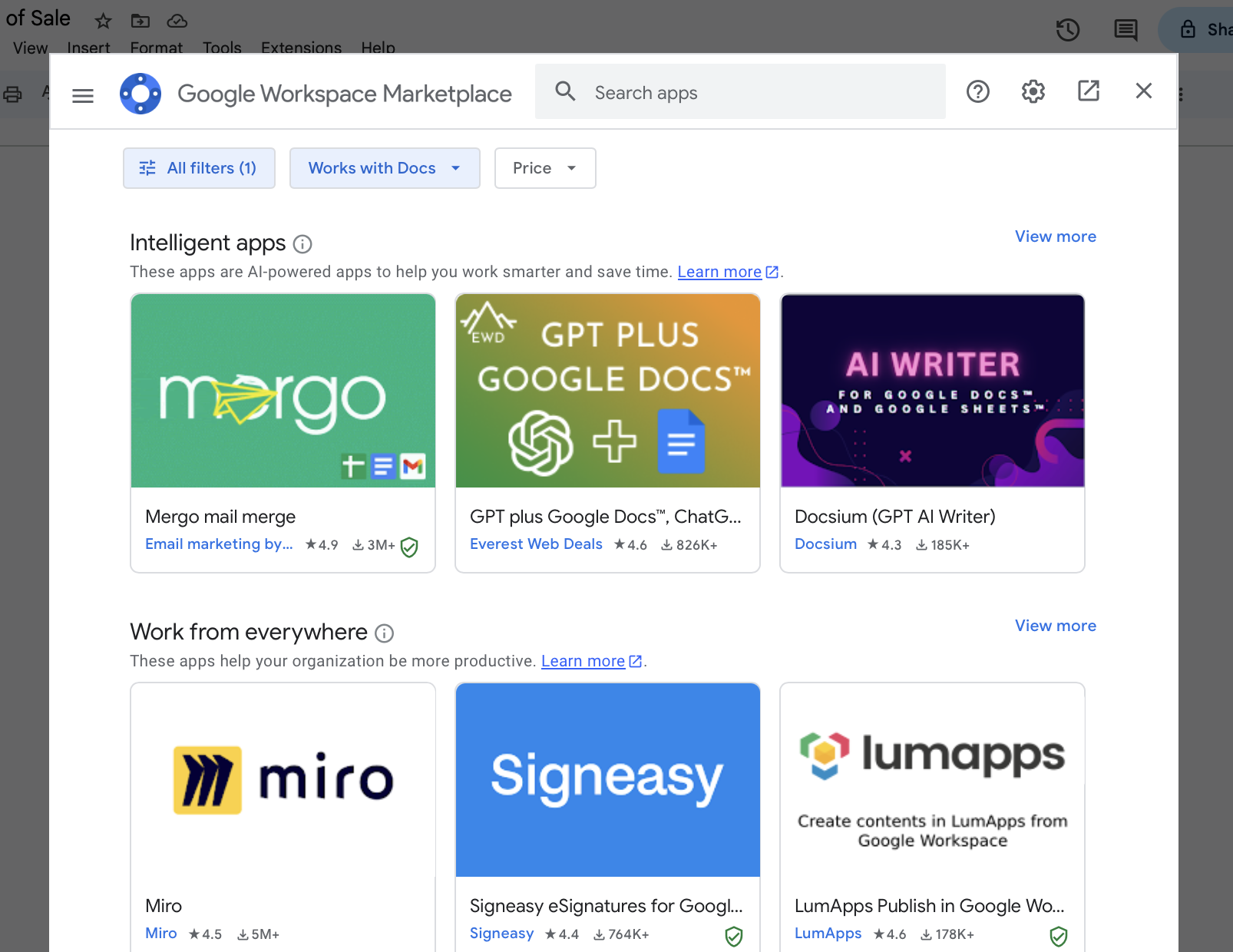

How to install Google Docs add-ons
Before you give any apps permission to access your account, be "politely paranoid." If something feels "off" about the app, listen to your gut. Don't feel compelled to install it just because you're afraid of looking paranoid or low-tech.
Click the add-on you want to install.
Click Install.
A pop-up window will appear, prompting you to give that add-on permission to install. Click Continue. You may also have to sign in to your Google account and then give the add-on access.
Once the add-on has been installed, click Done.
To run the add-on, click Extensions, select the add-on you want to run, and click Start.

If you don't see the Google Docs add-on you've installed in the Extensions dropdown, check the Google Docs sidebar—that's where some of them end up.
How to remove Google Docs add-ons
Here's the easiest way to uninstall Google Docs add-ons.
Click Extensions > Add-ons > Manage add-ons.
In the Google Marketplace window that appears, scroll down to Apps Installed by You, and find the app you want to remove. Or, enter the name of the app you want to remove in the search bar.
Click the Options icon, which looks like three dots stacked vertically (
⋮), and click Uninstall.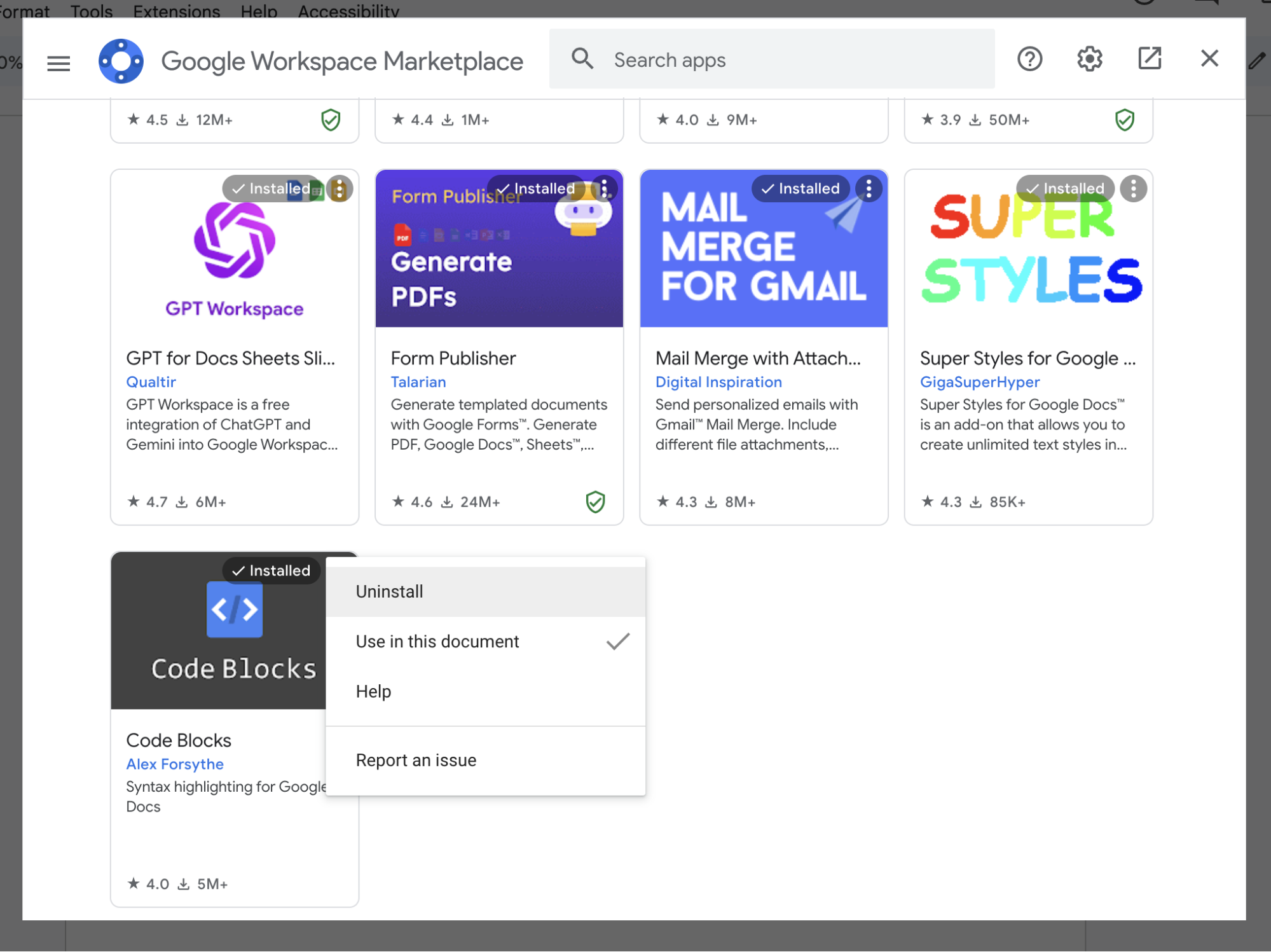

The 6 best Google Docs add-ons at a glance
Here's a quick overview of the best Google Docs add-ons (keep scrolling for more details).
Note: Most Google Docs add-ons are free or offer a free trial, so each tool listed below is free unless otherwise noted.
| Category | Best for |
|---|---|---|
Formatting text | Creating citations and bibliographies | |
Formatting text | Turning text into code | |
Formatting text | Formatting tables | |
Formatting text | Converting LaTeX code to fully rendered equations | |
Verifying original content | Checking for plagiarized content | |
Email and communication | Running a mail merge |
The best Google Docs add-ons for formatting text
Google Docs offers a handful of built-in formatting tools to make your documents pretty. But if you're looking to do more than add a signature or manually apply hanging indents, these Google Docs add-ons will speed up your formatting-related tasks.
Bibcitation Bibliography & Citation Generator
Best for: Creating citations and bibliographies
Google Docs comes with a built-in citations generator (click Tools > Citations). It offers three of the most popular styling formats: MLA, APA, and Chicago. But if you need something else, like AMA, you'll need to enter it manually. Or you can use the Bibcitation Bibliography & Citation Generator add-on.
Bibcitation offers everything Google Docs' built-in tool does—but way more. For example, Google Docs offers nine citation sources while Bibcitation offers over 30. And Bibcitation can create a works cited list in practically any format.

Code Blocks
Best for: Turning text into code
Styling prose in Google Docs is relatively easy, but making code look good—or, at least, legible—is trickier. That's where Code Blocks comes in.
Highlight the text you want to format, and select the coding language and theme you want to use. Then click Format, and Code Blocks will take care of the rest. You can also generate previews of the coded text before applying it to your document.

Text to Table Converter
Best for: Formatting tables
If you work with tables a lot, you'll probably appreciate an add-on like Text to Table Converter. It lets you easily convert text to tables (and vice versa) and format them using preset or custom styles. You can also convert your content into other languages. This goes beyond just word-for-word translation. For example, if your existing table includes dollar values like $5.99 and you convert it to French, the add-on will automatically format it as 5,99 $.

Auto-LaTeX Equations
Best for: Converting LaTeX code to fully rendered equations (and back)
LaTeX macros—for example, 3^{4^5}—are the best way to include mathematical equations in written documents, but the raw code can be a headache to interpret. With the Auto-LaTeX Equations add-on, you can quickly convert LaTeX code to an easy-to-digest image. All you have to do is wrap your macros within two dollar signs ($$), click Render Equations, and the add-on will take care of the rest. If you need to make adjustments to the equation, it's just as easy to de-render the equation.

Learn more: How to automatically convert Markdown to HTML.
The best Google Docs add-on for verifying original content
If you've written anything, ever, you know how easy it is to run into writer's block. Now that Google Gemini is woven into Google Docs, you can use AI to generate and rewrite text, translate paragraphs or whole documents, and creating images without installing an add-on. That said, you may still want to verify content originality.
PlagiarismSearch
Best for: Running plagiarism checks
PlagiarismSearch is a helpful tool if you need to check for plagiarized text in a document. It cross-references journals, websites, and multilingual sources to tell you what percentage of your document may have been plagiarized, along with a link to the relevant text source so you can decide if plagiarism has occurred.

Pricing: Free plan available; from $9.95 (one-time payment) for the Light package.
The best Google Docs add-on for email and communication
Your documents don't have to exist only in Google Docs. You can easily share them in just about any way—if you have the right add-ons. You can also print and mail them the old-fashioned way, but you can use Google Docs to fill in those address labels for you beforehand.
Docs Creator (Mail merge for letters)
Best for: Running a mail merge
Google Docs lacks the built-in mail merge tools seen in desktop word processing apps like Microsoft Word, so an add-on like Docs Creator is essential if you need to merge data from a spreadsheet with a Google Docs template.
You'll need to first ensure your data source is properly formatted—for example, column headers must be wrapped in percentage symbols (%). Once your spreadsheet is ready, you can run a mail merge from inside Google Docs either manually, at a fixed time, or after specific events. The add-on will then populate your Google Docs template with the relevant information, ready to be sent out.

Pricing: Free plan includes 10 documents per job and up to 150 documents per month; starts at €54/user/year for the Plus plan, which includes unlimited documents.
Automate Google Docs with Zapier
Instead of toggling between add-ons to speed up your document-related tasks, use Zapier's Google Docs integration. This way, you can connect with thousands of other apps and automate everything from copying data from your spreadsheet app into a Google Docs template to sharing documents via Gmail or your team chat app. Learn more about how to automate Google Docs, or get started with one of these pre-made templates.
Create Google Docs documents from text for new tl;dv transcripts


Create Google Docs documents from new Fathom transcripts

Copy data from new Google Sheets rows to a Google Doc template


Zapier is the most connected AI orchestration platform—integrating with thousands of apps from partners like Google, Salesforce, and Microsoft. Use forms, data tables, and logic to build secure, automated, AI-powered systems for your business-critical workflows across your organization's technology stack. Learn more.
Related reading:
This article was originally published in May 2017 by Matthew Guay with contributions from Tim Brookes. The most recent update was in January 2026.



