Top companies trust Zapier to automate work that solves their unique business problems—no coding required.
How Zapier works
Zapier makes it easy to integrate TrainHeroic with Google Sheets - no code necessary. See how you can get setup in minutes.
100%
Help
TrainHeroic
TrainHeroic
1. Choose trigger event
Google Sheets
Google Sheets
2. Choose action
1. Select the event
Setup
Test
TrainHeroic
Choose a trigger event
Choose a trigger
A trigger is the event that starts your Zap—like a "Athlete Accepts 1:1 Invitation" from TrainHeroic.
Add your action
An action happens after the trigger—such as "Create Spreadsheet Column" in Google Sheets.
You’re connected!
Zapier seamlessly connects TrainHeroic and Google Sheets, automating your workflow.
Supported triggers and actions
Zapier helps you create workflows that connect your apps to automate repetitive tasks. A trigger is an event that starts a workflow, and an action is an event a Zap performs.
Athlete Accepts 1:1 Invitation
Triggers when an athlete you coach 1:1 accepts an invitation.
Create a new record or update an existing record in your app.
Drive
Spreadsheet
Required
Worksheet
Required
Action
This is an event a Zap performs.
Write
Create a new record or update an existing record in your app.
Drive
Spreadsheet
Required
Worksheet
Required
Frozen Rows Count
Frozen Columns Count
Sheet Position
Hide Sheet
Action
This is an event a Zap performs.
Write
Create a new record or update an existing record in your app.
Drive
Spreadsheet
Required
Worksheet
Required
Source Range
Required
Destination Range
Required
Paste Type
Action
This is an event a Zap performs.
Write
Create a new record or update an existing record in your app.
Drive
Title
Required
Spreadsheet to Copy
Headers
Action
This is an event a Zap performs.
Write
Create a new record or update an existing record in your app.
Info
Drive
Spreadsheet
Required
Worksheet
Required
Row(s)
Required
Action
This is an event a Zap performs.
Write
Create a new record or update an existing record in your app.
Info
Drive
Spreadsheet
Required
Worksheet
Required
Row(s)
Required
Action
This is an event a Zap performs.
Write
Create a new record or update an existing record in your app.
Drive
Spreadsheet
Required
Worksheet
Required
Row
Required
Background Color
Text Color
Bold
Italic
Strikethrough
Action
This is an event a Zap performs.
Write
Create a new record or update an existing record in your app.
Drive
Spreadsheet
Required
Worksheet
Required
Cell Range
Required
Validation Type
Required
Input Message
Strict Validation
Action
This is an event a Zap performs.
Write
Create a new record or update an existing record in your app.
Drive
Spreadsheet
Required
Worksheet
Required
Row
Required
Overwrite All Columns
Background Color
Text Color
Bold
Italic
Strikethrough
Action
This is an event a Zap performs.
Write
Create a new record or update an existing record in your app.
Api_docs_info
Stop on error
Required
HTTP Method
Required
URL
Required
Query string parameters
Additional request headers
Body
Action
This is an event a Zap performs.
Write
Create a new record or update an existing record in your app.
Drive
Spreadsheet Name
Required
Search Type
Action
This is an event a Zap performs.
Search
Find existing data in your app
Drive
Spreadsheet
Required
Worksheet
Required
A1 Range
Required
Action
This is an event a Zap performs.
Search
Find existing data in your app
Drive
Spreadsheet
Required
Worksheet
Required
Row ID
Required
Action
This is an event a Zap performs.
Search
Find existing data in your app
Drive
Spreadsheet
Required
Worksheet
Required
Lookup column
Required
Lookup value
Required
Supporting lookup column
Supporting lookup value
Search from last row
Row count
Action
This is an event a Zap performs.
Search
Find existing data in your app
Drive
Spreadsheet
Required
Title
Required
Overwrite existing worksheet with the same title
Headers
Action
This is an event a Zap performs.
Search or write
Find existing data in your app, or create a new record if no data is found
For AI agents & developers
Use TrainHeroic and Google Sheets with AI agents and code
Beyond Zap workflows. Call TrainHeroic and Google Sheets actions directly from your AI client or your codebase, using the same 9,000+ app integrations Zapier already runs.
No code
Connect via Zapier MCP
Expose TrainHeroic and Google Sheets actions as tools in any MCP client. Authenticate once, then call them in natural language.
Example actions on this page
Create Spreadsheet Column
Works with
Claude · ChatGPT · Cursor · any MCP-compatible client
There is no Python package yet. SDK is TypeScript-only (@zapier/zapier-sdk). The MCP server URL is personal to your account; get it at zapier.com/mcp.
Zapier is the automation platform of choice for 87% of Forbes Cloud 100 companies in 2023
93%
Customers who say using Zapier has made them better at their job
25m
Customers have created over 25 million Zaps on the platform
6 mins
The average user takes less than 6 minutes to set up a Zap
Practical ways you can use TrainHeroic and Google Sheets
Track athlete purchases in a spreadsheet
When an athlete makes a program purchase through TrainHeroic, Zapier automatically logs that information into a spreadsheet in Google Sheets. This gives business owners a clear, real-time view of program sales performance and helps track revenue growth.
When someone starts a new trial in TrainHeroic, Zapier automatically records the trial details in Google Sheets. This helps marketers track lead conversion trends and plan campaigns to improve trial-to-payment conversion rates.
When an athlete cancels their team subscription in TrainHeroic, Zapier logs the cancellation into a Google Sheets spreadsheet. This allows project managers to analyze subscription trends and develop strategies to improve retention.
Learn how to automate Google Sheets on the Zapier blog
Make work flow with AI
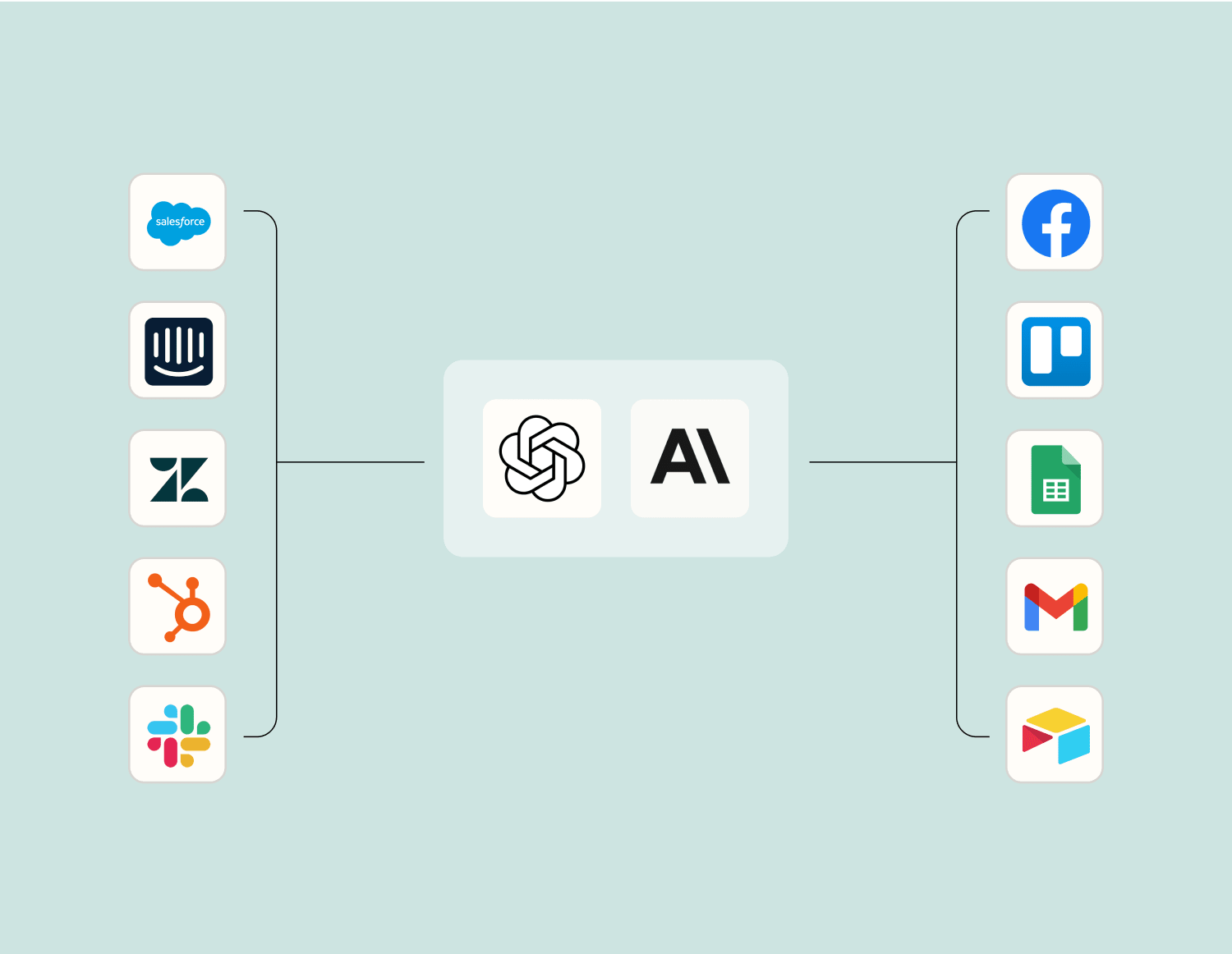
Level up your TrainHeroic to Google Sheets integration with AI. Extract, summarize, and transform your integration data with leading AI models like OpenAI, Anthropic, and more.
Frequently Asked Questions about TrainHeroic + Google Sheets integrations
New to automation with Zapier? You're not alone. Here are some answers to common questions about how Zapier works with TrainHeroic and Google Sheets
How do I connect TrainHeroic with Google Sheets?
To connect TrainHeroic with Google Sheets, you'll need to use an integration platform where you can set up a trigger from TrainHeroic, such as when a new workout is logged, and map it to an action in Google Sheets, like adding a new row with the relevant information.
What types of data can be transferred from TrainHeroic to Google Sheets?
You can transfer various types of data from TrainHeroic to Google Sheets, such as workout logs, athlete information, session details, and performance metrics. The specific data will depend on the triggers available in TrainHeroic and how they are mapped to actions in Google Sheets.
Can I update existing records in Google Sheets using information from TrainHeroic?
Yes, you can update existing records in Google Sheets by setting up an action that modifies a specific row or cell when a corresponding trigger occurs in TrainHeroic. This requires configuring the integration to identify the correct record to update.
Is it possible to automate sending workout summaries from TrainHeroic to Google Sheets on a scheduled basis?
Absolutely. You can automate the process by setting up scheduled triggers that send workout summaries from TrainHeroic at specified intervals. This would involve creating a repeating schedule action in your integration setup.
How do error notifications work if something fails during the data sync between TrainHeroic and Google Sheets?
If there's an issue during data synchronization between TrainHeroic and Google Sheets, we'll provide error notifications via email or through our platform dashboard, allowing you to quickly identify and troubleshoot any issues.
Can I use filters in my integrations between TrainHeroic and Google Sheets?
Yes, you can apply filters within your integrations to ensure only specific data points from TrainHeroic are sent to your Google Sheets. Filters help manage which triggers lead to actions based on set criteria like athlete names or specific workout types.
What should I do if my data isn't appearing correctly in Google Sheets after syncing with TrainHeroic?
If your data isn't appearing correctly in Google Sheets after syncing with TrainHeroic, first check that your triggers and actions are configured properly. Ensure that all fields match between both platforms. Additionally, reviewing any error messages received can help diagnose issues.
About TrainHeroic
TrainHeroic is a training tool to help coaches and athletes achieve their fitness goals.