Top companies trust Zapier to automate work that solves their unique business problems—no coding required.
How Zapier works
Zapier makes it easy to integrate Google Drive with Pocket - no code necessary. See how you can get setup in minutes.
100%
Help
Google Drive
Google Drive
1. Choose trigger event
Pocket
Pocket
2. Choose action
1. Select the event
Setup
Test
Google Drive
Choose a trigger event
Choose a trigger
A trigger is the event that starts your Zap—like a "New File" from Google Drive.
Add your action
An action happens after the trigger—such as "Save for Later" in Pocket.
You’re connected!
Zapier seamlessly connects Google Drive and Pocket, automating your workflow.
Supported triggers and actions
Zapier helps you create workflows that connect your apps to automate repetitive tasks. A trigger is an event that starts a workflow, and an action is an event a Zap performs.
Use Google Drive and Pocket with AI agents and code
Beyond Zap workflows. Call Google Drive and Pocket actions directly from your AI client or your codebase, using the same 9,000+ app integrations Zapier already runs.
No code
Connect via Zapier MCP
Expose Google Drive and Pocket actions as tools in any MCP client. Authenticate once, then call them in natural language.
Example actions on this page
Copy File
Save for Later
Works with
Claude · ChatGPT · Cursor · any MCP-compatible client
There is no Python package yet. SDK is TypeScript-only (@zapier/zapier-sdk). The MCP server URL is personal to your account; get it at zapier.com/mcp.
Zapier is the automation platform of choice for 87% of Forbes Cloud 100 companies in 2023
93%
Customers who say using Zapier has made them better at their job
25m
Customers have created over 25 million Zaps on the platform
6 mins
The average user takes less than 6 minutes to set up a Zap
Practical ways you can use Google Drive and Pocket
Upload new Pocket items to a Google Drive folder
Stay organized by letting Zapier save items you add to Pocket into a specific Google Drive folder. It's a seamless way of consolidating resources and making them accessible across your business.
When you tag an article in Pocket, Zapier will save the content to a Google Drive folder. This ensures knowledge articles or useful references are easily stored and accessible for your support team, improving response efficiency.
When you archive an item in Pocket, Zapier can move it to a 'Completed Projects' folder in Google Drive. This keeps your files organized and ensures your team can reference past projects without cluttering active workflows.
Learn how to automate Google Drive on the Zapier blog
Make work flow with AI
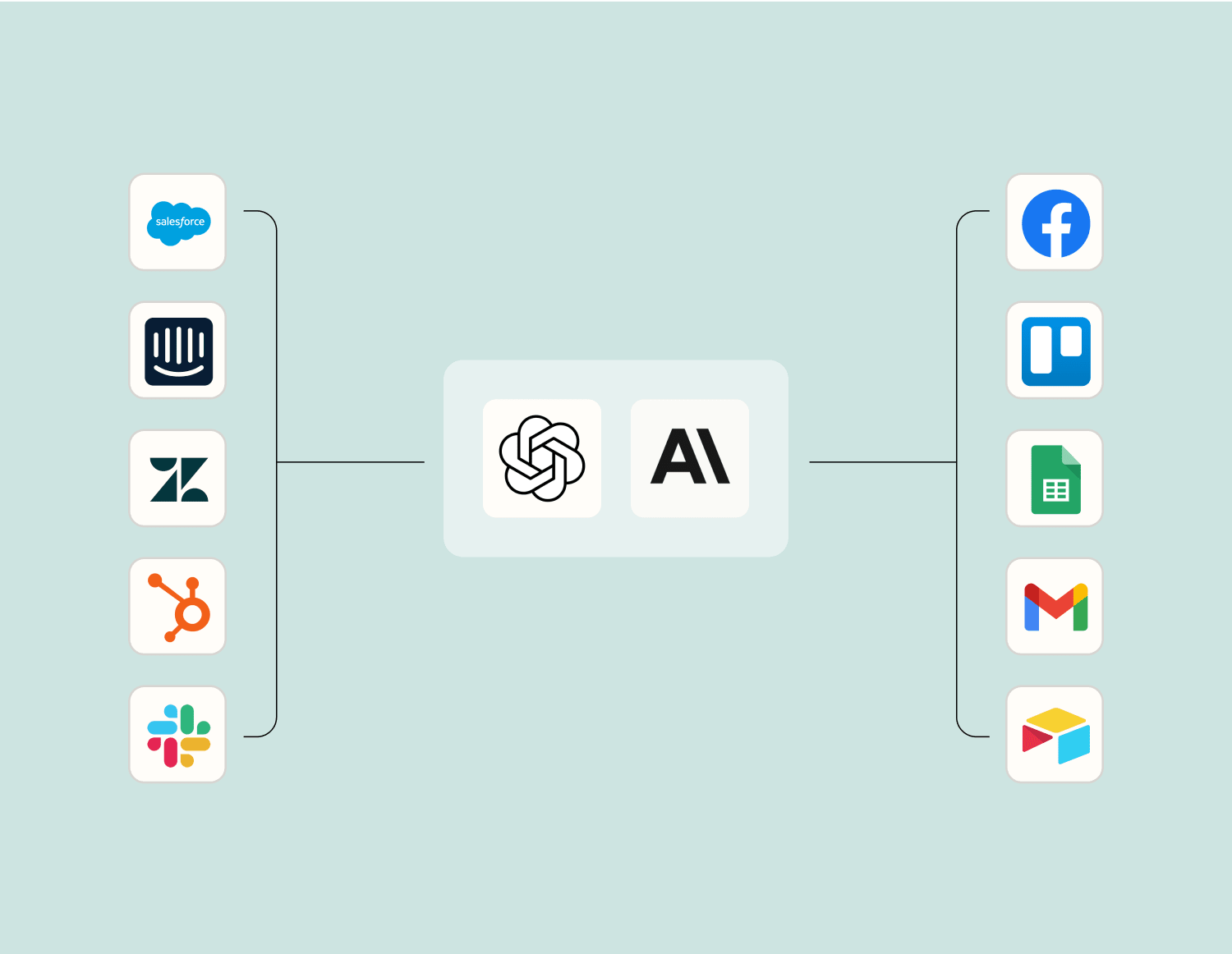
Level up your Google Drive to Pocket integration with AI. Extract, summarize, and transform your integration data with leading AI models like OpenAI, Anthropic, and more.
Frequently Asked Questions about Google Drive + Pocket integrations
New to automation with Zapier? You're not alone. Here are some answers to common questions about how Zapier works with Google Drive and Pocket
How do I integrate Google Drive with Pocket using your service?
You can integrate Google Drive with Pocket by setting up a Zap that connects an action in one app to a trigger in the other. For example, you might want to automatically create a new Pocket item whenever a new file is added to a specific Google Drive folder.
What kind of triggers can I set up for this integration?
For this integration, you can set up triggers such as 'New File in Folder' on Google Drive or 'New Item Added' on Pocket. These triggers will initiate automated actions between the two apps.
Can I customize what happens when a trigger occurs with this integration?
Yes, through our platform, you can customize actions based on specific triggers. For example, if a new article is saved in Pocket, you could choose to automatically save it as a PDF in a chosen Google Drive folder.
Are there any file format limitations when syncing Pocket articles to Google Drive?
When syncing articles from Pocket to Google Drive, you can convert the items into file formats like PDFs or text files. However, the original content format may impact how well it's converted and stored.
Is it possible to sync archived items from Pocket to Google Drive?
Yes, syncing archived items from Pocket is possible. Set up a trigger for when an item is archived on Pocket and define an action that stores these archived items in your desired location within Google Drive.
Can I use multiple folders or labels in Pocket for more detailed organization in Google Drive?
Absolutely! You can create Zaps that use different labels or tags from Pocket as conditions to organize where items get stored in your various Google Drive folders. This allows for structured and efficient organization according to your needs.
Do I need technical expertise to set up the integration between these two platforms?
No technical expertise is required. Our user-friendly interface guides you through connecting triggers and actions between Google Drive and Pocket without needing any coding skills.
About Google Drive
Google Drive is Google's file sync app that lets you store all of your files online alongside your Google Docs documents, and keep them synced with all of your devices.