Connect Google Drive and Quip to power AI-driven automation
- No-code AI automation
- Full audit trails and controls
- SOC 2 and GDPR compliant
- Easy visual workflow builder
- 9,000+ apps, 450+ AI tools
- Free tier available
Launch your first automated workflow
Start with a template that brings Google Drive and Quip together. Build enterprise-grade automation in minutes.
Our most popular template


How Zapier works
Zapier makes it easy to integrate Google Drive with Quip - no code necessary. See how you can get setup in minutes.

Choose a trigger
A trigger is the event that starts your Zap—like a "New File" from Google Drive.
Add your action
An action happens after the trigger—such as "Add Item to List" in Quip.
You’re connected!
Zapier seamlessly connects Google Drive and Quip, automating your workflow.
Supported triggers and actions
Zapier helps you create workflows that connect your apps to automate repetitive tasks. A trigger is an event that starts a workflow, and an action is an event a Zap performs.
- Drive
Try ItTriggerPolling- Drive
- Include Subfolders?
Try ItTriggerInstant- Drive
- Folder
- Include_deleted
Try ItTriggerPolling- Drive
- Folder
- FileRequired
- Confirm deletionRequired
ActionWrite
- Drive
- Folder
- Include Subfolders?
- Subfolder Depth Limit
- Include Deleted Files?
Try ItTriggerPolling- Drive
- Folder
Try ItTriggerPolling- File IDRequired
- Convert to Document?
- File Name
- Drive
- Folder
ActionWrite- Drive
- Folder
- FileRequired
- Export FormatRequired
ActionWrite
For AI agents & developers
Use Google Drive and Quip with AI agents and code
Beyond Zap workflows. Call Google Drive and Quip actions directly from your AI client or your codebase, using the same 9,000+ app integrations Zapier already runs.
Connect via Zapier MCP
Expose Google Drive and Quip actions as tools in any MCP client. Authenticate once, then call them in natural language.
Example actions on this page
Works with
Claude · ChatGPT · Cursor · any MCP-compatible client
Call from code with the Zapier SDK
Trigger Google Drive and Quip actions from backend services, scripts, or agent code.
Install
# TypeScript / Node
npm install @zapier/zapier-sdk
Run an action
import { createZapierSdk } from '@zapier/zapier-sdk';

const zapier = createZapierSdk();
await zapier.runAction({ /* google-drive / quip action */ });There is no Python package yet. SDK is TypeScript-only (@zapier/zapier-sdk). The MCP server URL is personal to your account; get it at zapier.com/mcp.
Zapier is the automation platform of choice for 87% of Forbes Cloud 100 companies in 2023




93%
Customers who say using Zapier has made them better at their job
25m
Customers have created over 25 million Zaps on the platform
6 mins
The average user takes less than 6 minutes to set up a Zap
Connect Google Drive and Quip to integrate crucial parts of your business
With Zapier, you can integrate everything from basic data entry to end-to-end processes. Here are some of the business-critical workflows that people automate with Zapier.
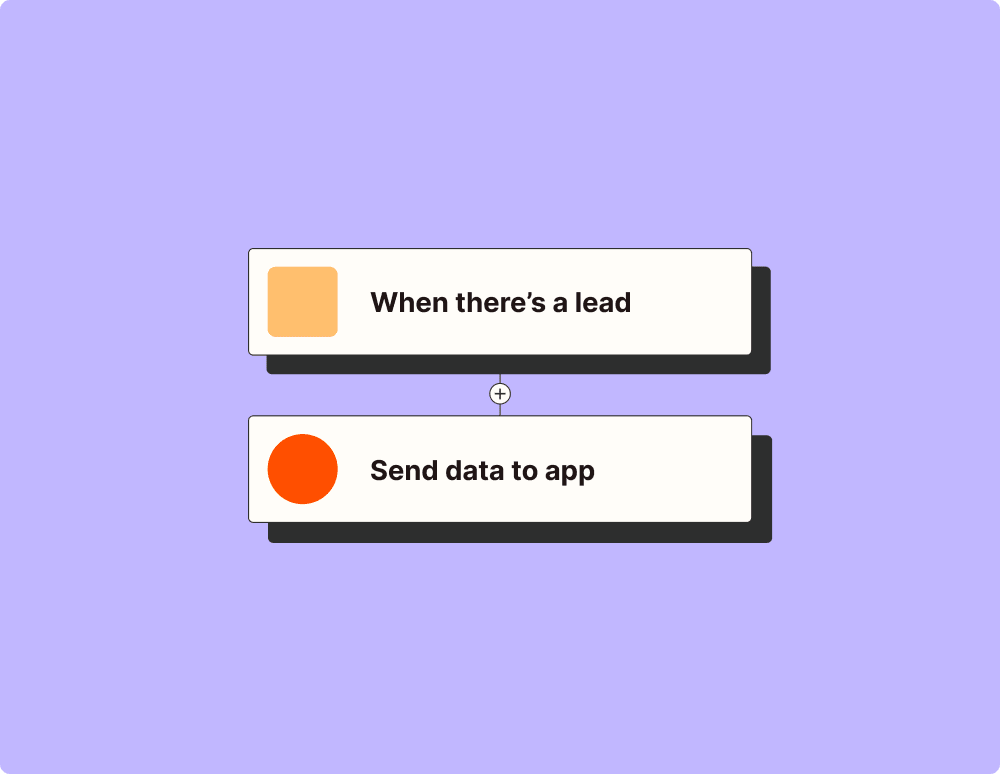
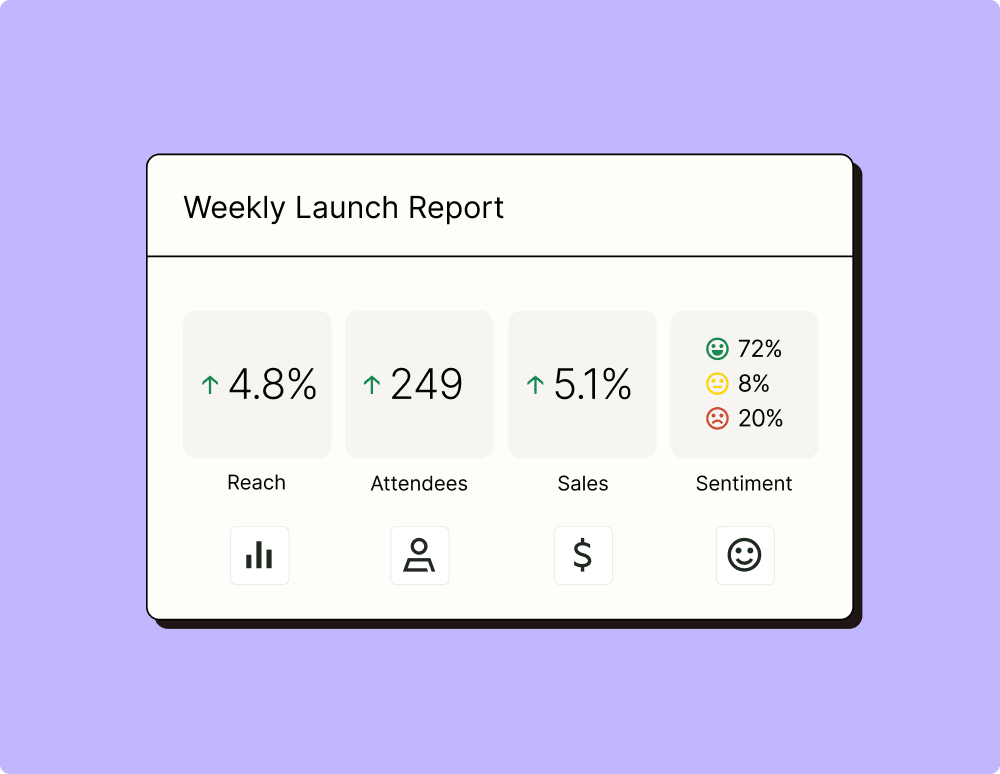
Automate your lead management and improve conversions
Create more impactful campaigns with automation
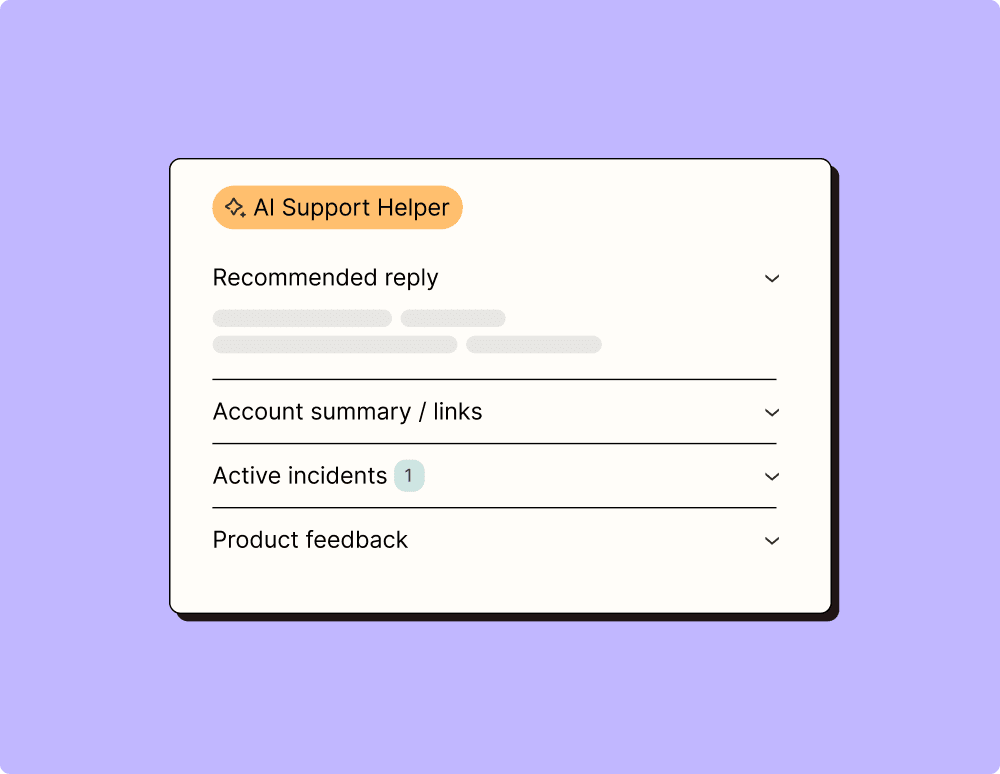
Provide world-class support with a little help from automation
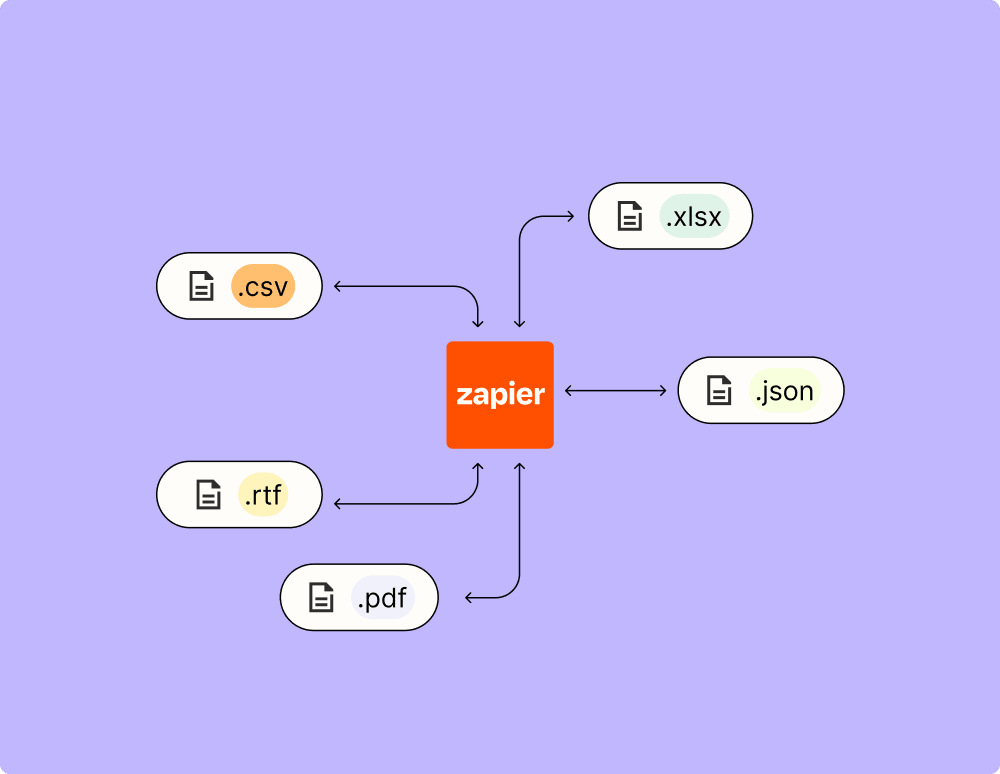
Automate your way to actionable, up-to-date data
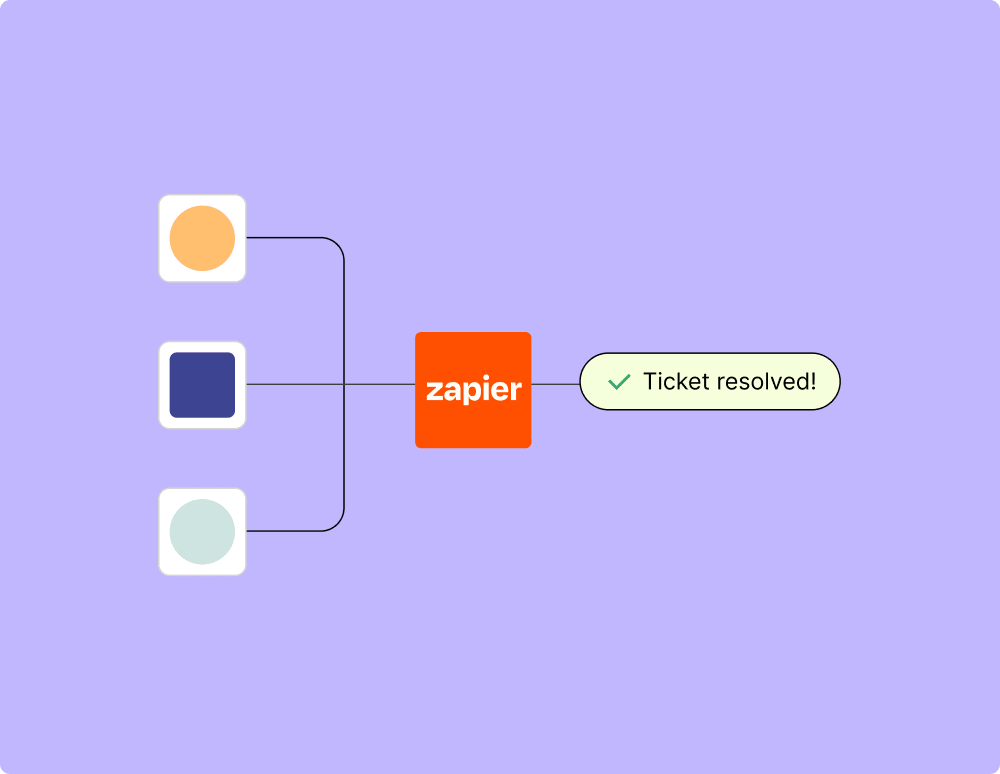
Resolve incidents faster with automation
Learn how to automate Google Drive on the Zapier blog
Make work flow with AI

Frequently Asked Questions about Google Drive + Quip integrations
New to automation with Zapier? You're not alone. Here are some answers to common questions about how Zapier works with Google Drive and Quip
How do I connect my Google Drive account to Quip?
To connect Google Drive to Quip, first navigate to Quip’s app integration settings. Choose Google Drive from the list of available integrations and follow the prompts to authorize access. We ensure a secure connection by directing you through the proper authentication procedures, granting necessary permissions for data extraction and writing.
Can I automate document updates from Google Drive to Quip?
Yes, you can automate updates between Google Drive and Quip. Once your accounts are connected, you can set triggers such as ‘when a file is updated’ in Google Drive, which will then prompt an action like ‘update or sync a document’ in Quip automatically.
What types of files can be synced from Google Drive to Quip?
Our integration allows various file types such as documents, spreadsheets, and presentations from Google Drive to be synced with Quip. Each file type facilitates different actions; for example, documents can trigger content updates in linked Quip documents.
Are there any limitations on syncing large files between Google Drive and Quip?
There might be limitations based on file size when syncing. Typically, most standard-sized files sync without issue. However, overly large files may require longer processing times or might need splitting into smaller parts for seamless integration.
How often are changes synchronized between my applications?
Synchronization frequency depends on how you've set up your triggers and actions. For real-time synchronization, you would enable automated workflows that trigger immediate updates whenever changes occur in either platform.
Is it possible to back up my Quip documents automatically onto Google Drive?
Yes, it's possible to back up your documents automatically. You can establish a workflow that triggers backups by selecting triggers like ‘document creation or update’ in Quip which then saves the content into a designated folder on Google Drive.
Can collaboration features from quips be used when integrating with google drive?
While collaboration features within each app remain distinct, integrated use allows collaborative work like shared edits which update seamlessly across platforms through specific actions aligned with editing or commenting activities.