Google Meet ist in fast alles integriert, was Google erstellt – einschließlich Google Kalender, wo es die Standard-Videokonferenzoption für jedes von Ihnen erstellte Event ist.
Wenn Meet aber nicht dein Ding ist, bist du nicht daran gebunden. So kannst du Zoom zum Google Kalender hinzufügen (und es zur Standard-Meeting-Option machen).
Inhalt:
So fügst du Zoom zu Google Kalender hinzu
Um loszulegen, musst du das Zoom Google Kalender-Plugin installieren. So geht's.
Geh zu calendar.google.com, Und sich einloggen.
Klicken Sie auf das Symbol "Add-ons abrufen " (
+) im rechten Seitenpanel.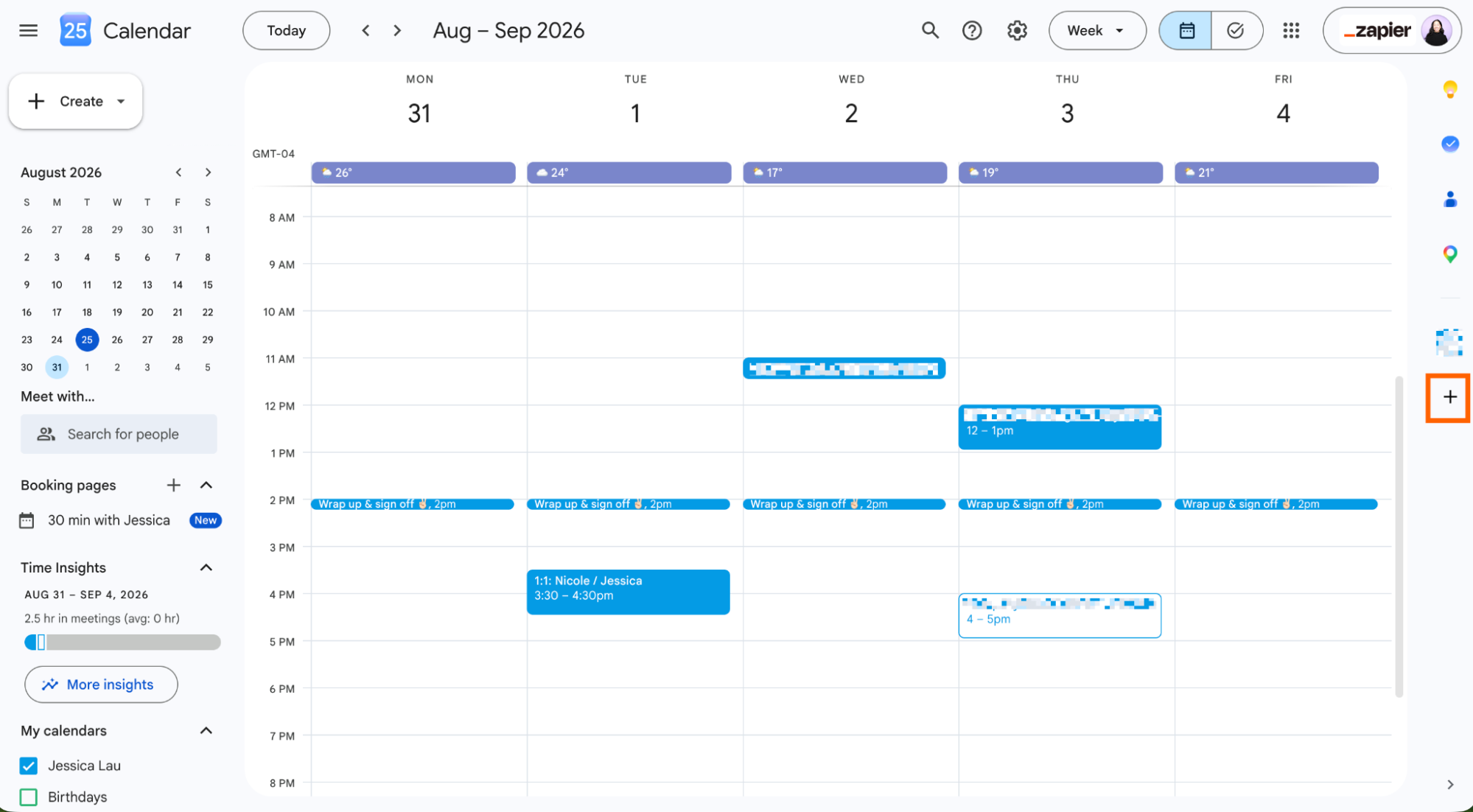
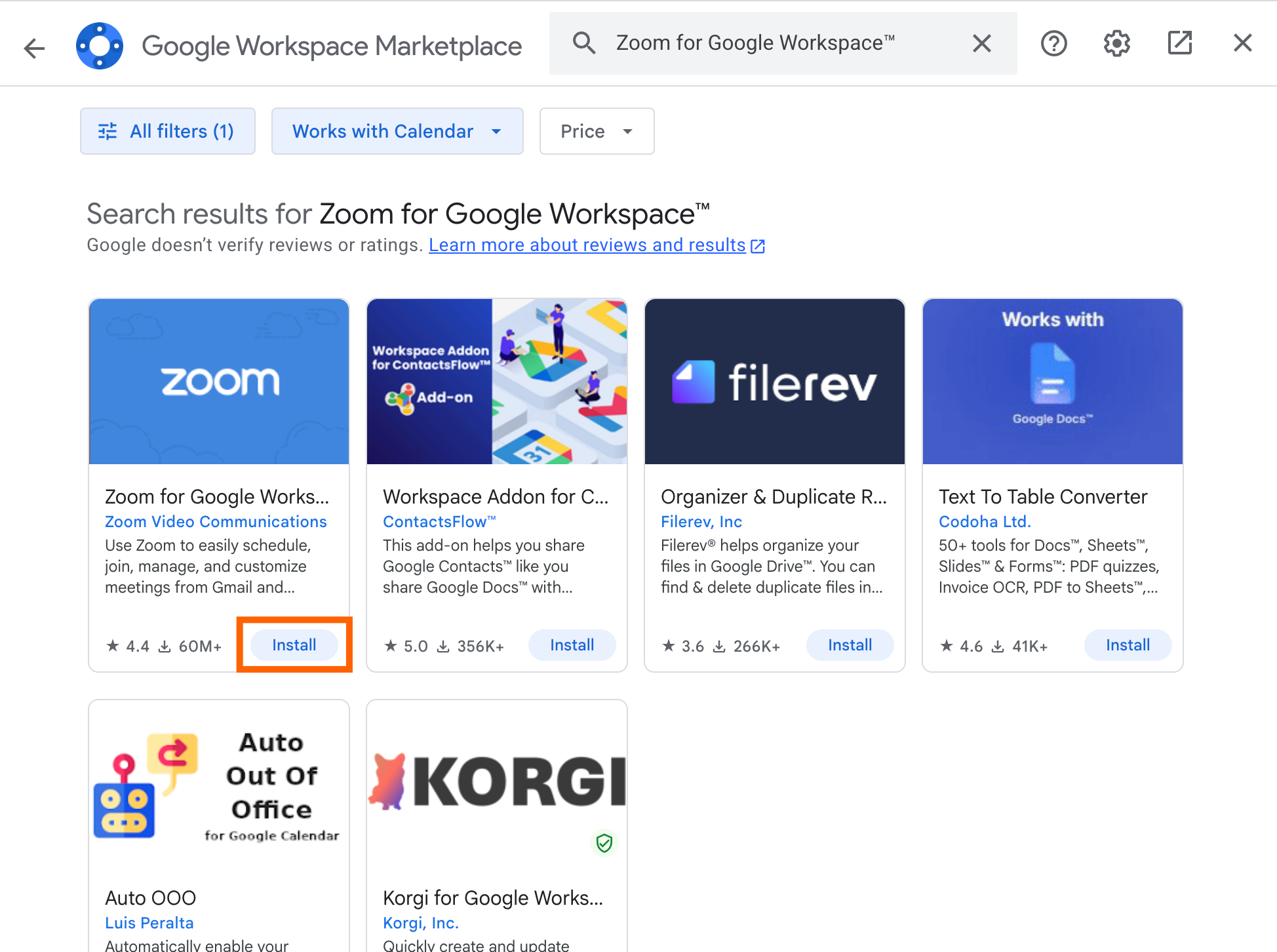
Im erscheinenden Google Workspace Marketplace-Popup suchen Sie nach "Zoom for Google Workspace".
Klicken Sie auf Installieren in der Zoom-Karte für Google Workspace.
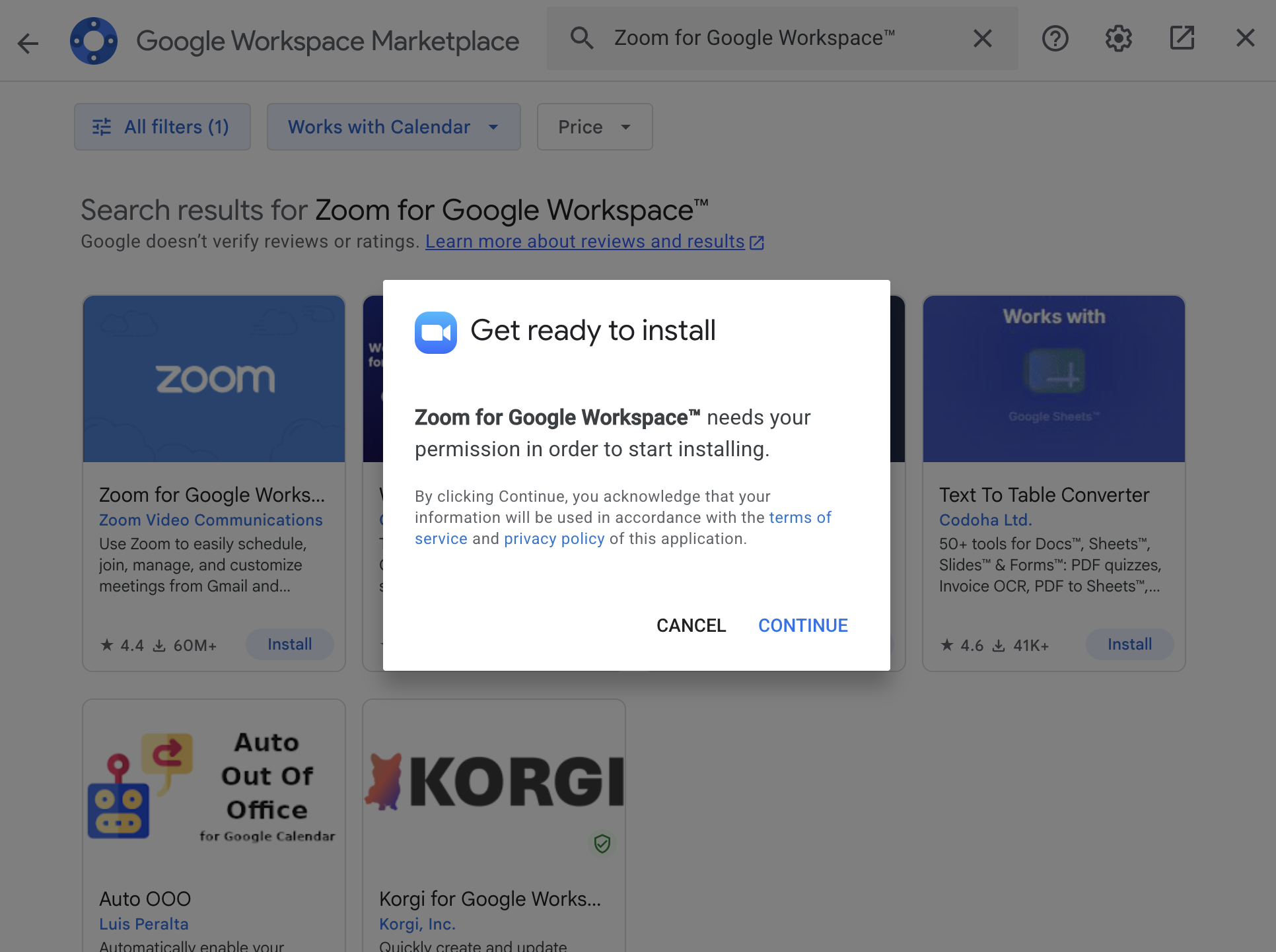
Klicken Sie auf Weitermachen und folgen Sie den Anweisungen zur Installation. (Wenn Sie Google Workplace-Administrator sind, können Sie Zoom für Ihre gesamte Domain installieren.)
Klick auf „Fertig“ und schließ dann das Popover-Fenster „Google Workspace Marketplace“.
Planen Sie nun wie gewohnt ein Google-Kalender-Meeting . Während Sie die Veranstaltung erstellen, klicken Sie auf Google Meet Videokonferenz hinzufügen und wählen Sie Zoom Meeting.


Beim ersten Hinzufügen eines Zoom-Meetings wirst du aufgefordert, dich in dein Zoom-Konto einzuloggen. Aber sobald du das tust, bist du für die Zukunft startklar.
Die Details des Zoom-Meetings, einschließlich des Meeting-Links, der Telefonnummer und des Tagesordnungs, werden automatisch im Kalenderevent angezeigt.

So machst du Zoom zur Standardoption in Google Kalender
Zoom zur Standard-Videokonferenz-Anwendung in Google Kalender zu machen, erfordert ein Google Workspace-Admin-Konto (das kann man bei persönlichen Gmail-Konten nicht machen).
Zuerst musst du Google Meet als Standard für Google Kalender-Ereignisse entfernen.
Geh zu admin.google.com.
Klicken Sie auf das Menü (
≡), und wählen Sie Apps > Google Workspace > Google Meet aus.Klicken Sie auf das Dropdown-Menü und wählen Sie für alle AUS.

Klick auf „Speichern“.

Jetzt kannst du Zoom zum Standard-Meetingraum machen.
Geh zu admin.google.com.
Klicken Sie auf das Menü (
≡), und wählen Sie Apps > Google Workspace > Kalender.Klicken Sie auf Freigabe-Einstellungen und wählen Sie dann Videokonferenz aus.
Haken das Kästchen neben Automatisch Videoanrufe zu Ereignissen hinzufügen, die Nutzer erstellen.
Klick auf „Speichern“.
Der Videokonferenz-Button im Google Kalender ändert sich zu Videokonferenz hinzufügen. Wenn du darauf klickst, werden automatisch die Details zu Zoom-Meetings angezeigt (auch hier vorausgesetzt, Zoom ist die einzige installierte Videokonferenz-Anwendung).

Es wäre schön, wenn das möglich wäre, ohne Meet komplett zu deaktivieren, aber diese Methode funktioniert, also probiere es aus, wenn du es leid bist, je nach Terminvereinbarung von einem Dienst zum anderen zu wechseln.
Automatisieren Sie Google Kalender und Zoom mit Zapier
Wenn du Google Kalender und Zoom als Kernteile deiner Arbeit nutzt, kann Zapier sie miteinander und mit dem Rest deines Tech-Stacks verbinden, sodass du durchgehende Workflows rund um Meetings koordinieren kannst 9,000+ Anwendungen. Zum Beispiel kann Zapier, wenn eine neue Formulareinreichung eingeht, automatisch ein Meeting im Google Kalender planen (inklusive Zoom-Link), ein Terminvorbereitungsdokument basierend auf Kontaktdaten erstellen und es mit Ihnen in Slack teilen.
Sie können Zapier auch in ChatGPT, Claude oder einen anderen KI-Assistenten installieren, sodass Sie direkt aus dem Chatfenster auf Google Kalender, Zoom und alle anderen Apps zugreifen und Maßnahmen ergreifen können.
Erfahren Sie mehr darüber , wie man Google Kalender automatisiert und wie man Zoom automatisiert.
Verwandte Lektüre:
Dieser Artikel wurde ursprünglich im Oktober 2020 von Justin Pot veröffentlicht. Das letzte Update war im August 2026.